A lead enquiry collected from a Facebook lead form (or any other form) can be submit to FMS through Jim’s Public WebAPI.
The Jim’s Public WebAPI is protected with an API key called a bearer token. If you need to request an API key, please contact infotech@jims.net.
Please note that if any of the details do not pass validation, an email will be sent to the email address provided asking the user to complete their request in an online form.
1. Details to collect
The lead enquiry endpoint requires the following data for a lead enquiry to be submit to FMS. Please ensure all details are collected prior to submitting the request to the WebAPI
| Field | Type | Notes |
| First Name | String | |
| Last Name | String | |
| Address | String | The address needs to be include a street number, street name, suburb, and postcode. If the house is a unit or flat, the details should be included too. For example: 2/36 Karingal Street North Croydon 3136 |
| Email Address | A valid email address | |
| Phone | Phone Number | Area code required For example 03 9876 5432 A phone of 9876 5432 will not be accepted |
2. Sending the data to FMS
The easiest way to send data to FMS is with an intermediary like Zapier, as Zapier is already connected to many other platforms.
To configure Zapier to send a lead enquiry to FMS, please complete the following:
2.1. Create a Webhook using “Webhooks by Zapier”
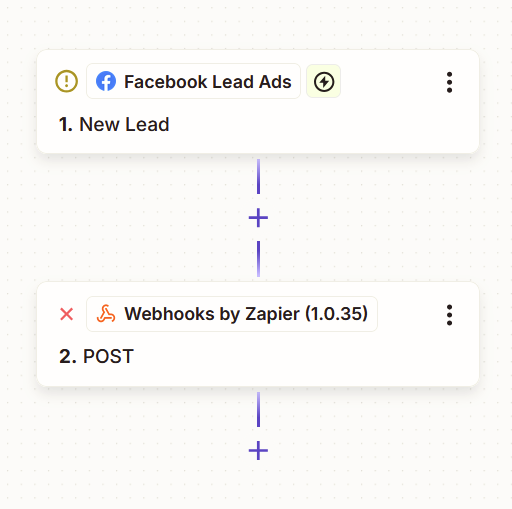
Sending the lead data to FMS is achieved by configuring a Zap with two steps:
- Facebook Lead Ad,
- and a Webhook
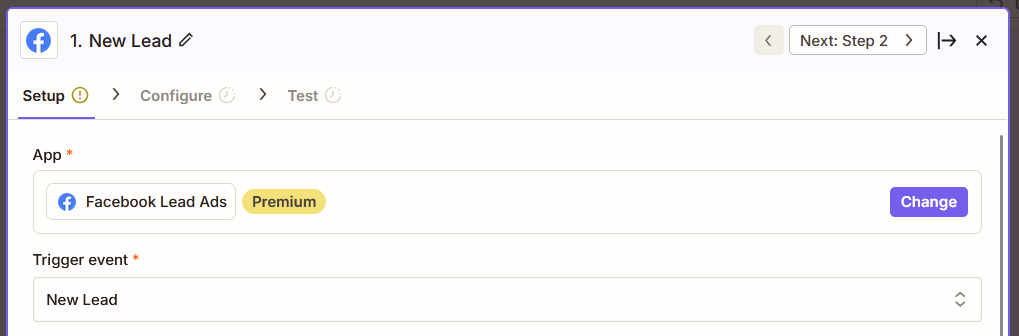
2.2. The Facebook Leads Ad step should be configured with “New Lead” as the trigger event
2.3. A web hook step should then be added to the Zap
2.4: The webhook should be configured to have an “action event” of “Custom Request”
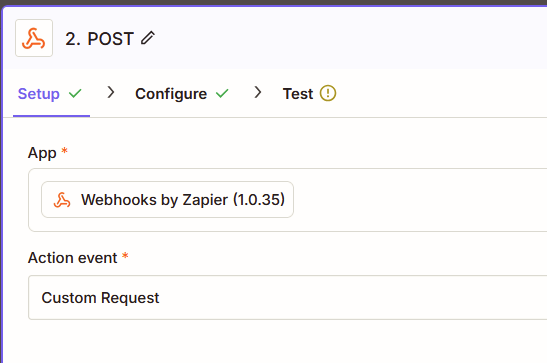
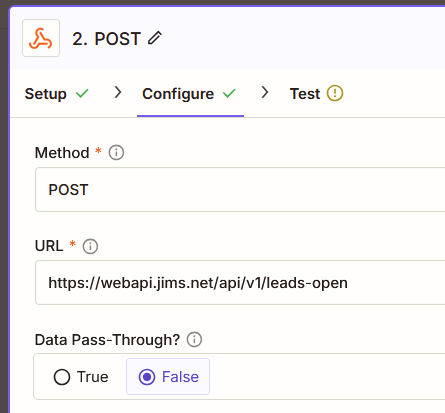
2.5: Configure the Webhook with
- Method as POST
- URL as https://webapi.jims.net/api/v1/leads-open
- Data Pass-Through as False
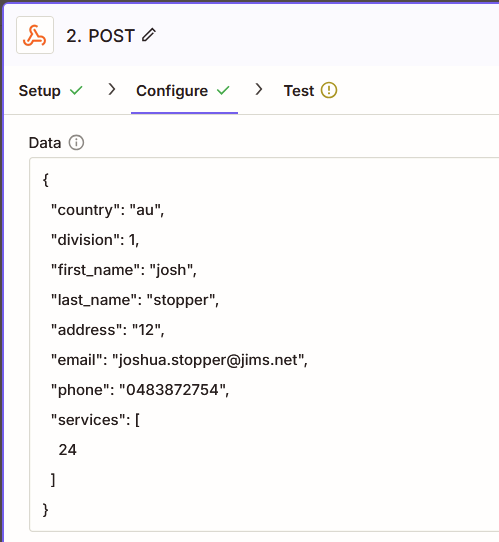
2.6: Con gure the Data for the POST with the following template, and update the values with variables from Zapier with the data from Facebook data.
- The Country needs to be set to either AU or NZ
- Division needs to be the ID of the division the lead is for
- first_name, last_name, address, email, and phone need to be updated with variables representing the data from facebook
{
"country": "au",
"division": 1,
" first_name": "xxxx",
"last_name": "xxxx",
"address": "2/36 Karingal Street North Croydon 3136",
"email": "xxx@xxx.xxx",
"phone": "xxxxxxxxxx",
"services": [24]
}
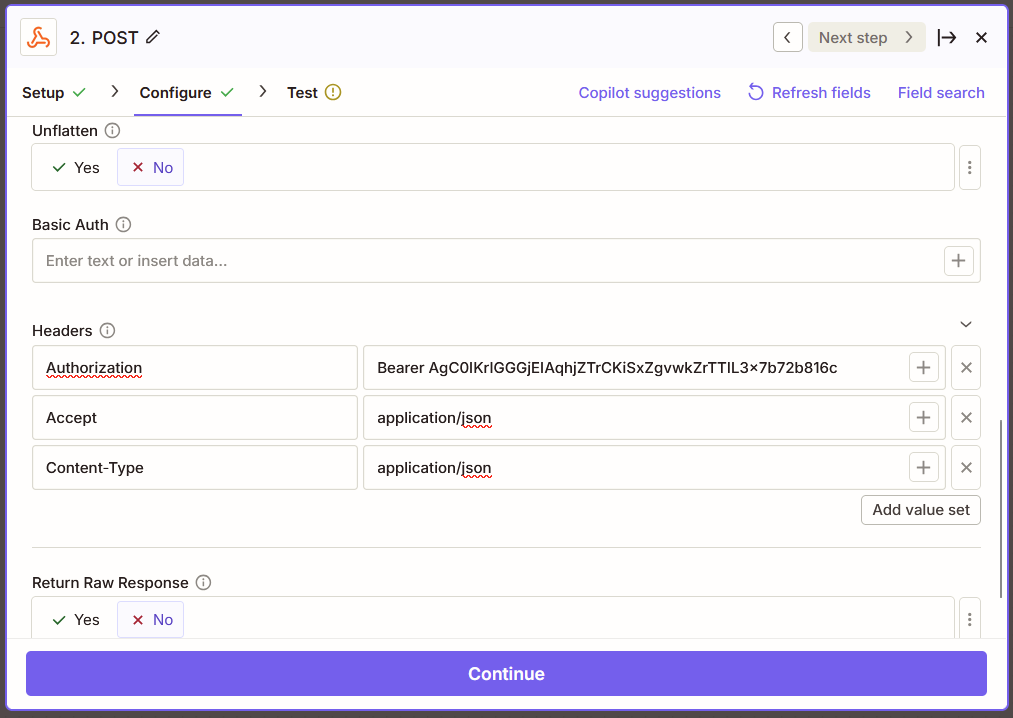
2.7: Adjust the following settings under the data that is send
- Con figure unflatten as no
- In the headers area set the following
- Authorization with a value of “Bearer xxx” where xxx represents the API key provided by infotech
- Accept with a value of application/json
- Content-Type with a value of application/json
- Return Raw Response should be set to No
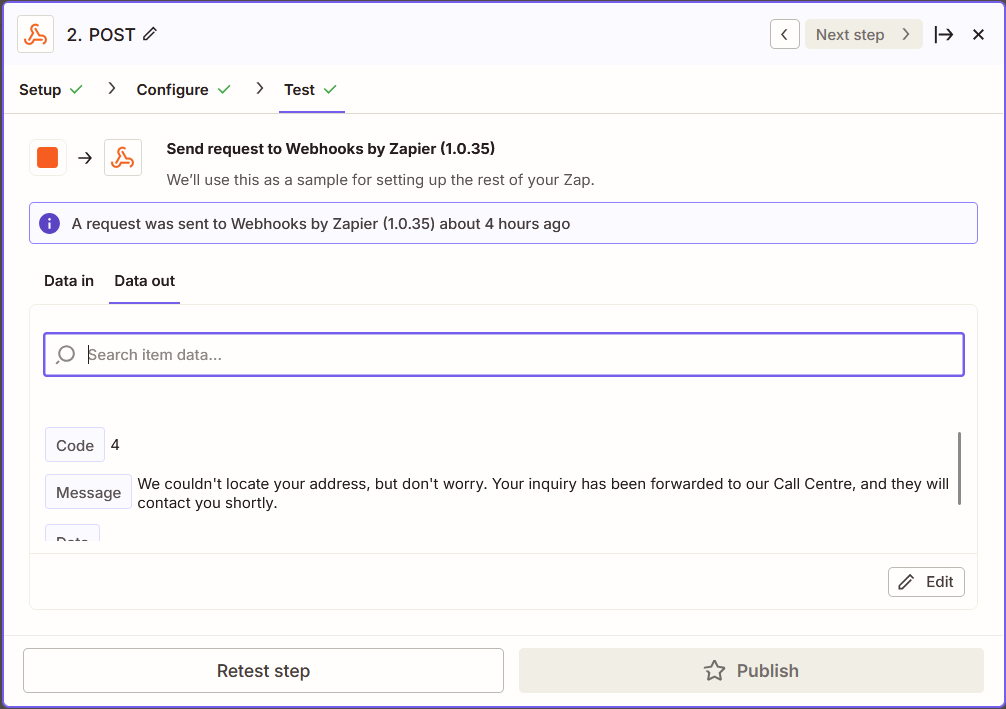
2.8: On the final screen of the Webhook step, you can test the integration with FMS.
To test the integration with the production FMS, you can use “test” as the first and last name so a lead is not allocated to a franchisee.
If you would like to test the integration with other details, without the concern of leads being allocation to franchisees, you can use the hot fix environment by changing the URL on the configure screen to https://hf.webapi.jims.net/api/v1/leads-open and requesting an API key for the hotfix environment from infotech@jims.net.